|
||||||

Appointments
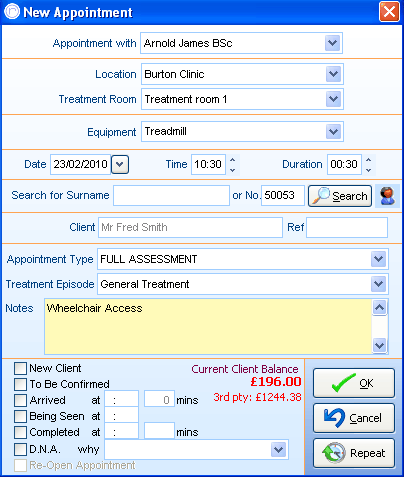
Appointment With
The practitioner is normally selected for you based upon the column on the diary you have clicked to add the new appointment to. This list is dependent on which 'System Users' are marked as a practioner within your System User Set Up from the Tools menu.
Location, Treatment Room and Equipment
are all selectable - The selections are controlled via the Look Up Tables area under 'Appointment Diary Tables'.
Date, Time and Duration
The appointment itself is also controlled here. Opening up a new appointment directly from an available time slot on the appointments diary will pre-emptively fill in this information.
Search for Surname
is used to enter in part of the surname of an existing client, or just use the Search button to select the client required by typing in all or part of their surname or clicking on the graphic image of a person to insert the client you currently have selected highlighted.
Tip: If you have a client with a common surname that lists dozens of clients, you can also search on firstname in the search box. If searching for "Fred Smith" in the surname box you can search for "smith f" or "smi fre" for more accurate results.
Appointment Types
This is a list that you can set up under “tools – look-up tables – appointments diary tables”. Your entries on this list can describe the type of appointment and can be shown on the diary alongside the client name. These entries can also pre-determine the duration of the appointment, the charge/fee, and the display colour on the diary. You can also set up specific templates for each appointment type to use for booking confirmations, follow-up reminders and clinical notes custom forms. Using this list is also be a useful way to breakdown your appointments reports – for example to show revenue by appointment type.
Treatment Episodes
An existing episode is chosen from the drop down menu. They are also created here if no active treatment episodes already exists. This is a useful area to keep track of which appointments regard which treatments the client is currently undertaking.
Notes
The notes text box is here to record any extra details about the client, which can optionally be shown on various PPS reports. The clients current account balance just under the text notes box is shown for information purposes as well.
Status tick boxes
are automatically selected throughout the clients appointment stages. These can optionally be ticked and un-ticked manually if required. The 'New Client' tickbox is selected if you create a new client from the 'New Appointment' screen. Marking an appointment as DNA will also allow you to re-open the appointment slot for another client to use within the diary
The OK button creates the appointments on the diary after a client is selected and any additional fields are filled in. Repeating a series of future appointments is also an option by using the repeat button in the bottom right. For further details, open up the Repeat Appointment screen and press 'F1' on your keyboard.
Tip: PPS has the ability to automatically send the client an instant SMS message to confirm the details of the appointment just booked. In addition, PPS has a further ability to schedule an SMS reminder for the client a few days before the appointment. This can also be done via letter, e-mail or Telephone reminder.
Further Help & Information
If you need any further assistance, please call PPS support on 0845 0680 777 and go through to option 2. Alternatively, you can e-mail us at support@rushcliff.com
If you do not have a support contract and require further information, please contact PPS Sales on 0845 0680 777 and go through to option 1.
Become part of the PPS community and visit the PPS user forum - For PPS users, by PPS users!
The PPS Support Forum
Do you have a support contract with us? If so, check out our on-line help guides - easy step-by-step help and a range of answers to common questions.
Login to your account at https://www.rushcliff.com/support.php and take a look!
DISCLAIMER: This help documentation is offered on a “best intentions” basis. No responsibility is held by Rushcliff Ltd or it’s agents for the content, or for the advice given herein, or for the consequences or actions resulting in following the advice given in this help guide. This document may contain confidential information. The unauthorised use, disclosure or copying of this document or any of the information contained within it is strictly prohibited. Rushcliff Ltd PO Box 6406 Burton On Trent DE15 0XR. Registered in England and Wales, No. 4151443 VAT No. 488 9467 38. Registered office Basepoint Business & Innovation Centre, 110 Butterfield, Great Marlings, Luton, Bedfordshire, LU2 8DL.