|
||||||

Creating a Charge
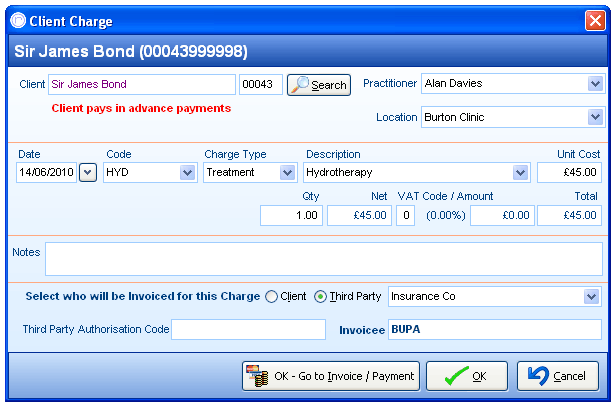
Client, Practioner and Location
A charge is the first step for PPS billing. You have to create a charge before you can raise an invoice . Selecting a client and practioner is mandatory, however charge location is optional. Using locations with charges does offer further benefits for accounts style reports. This area will also show any accounts notes for that client in red.
Selecting a Charge
The date is automatically selected, but can be altered if required. Clicking on the 'Code' or 'Description' dropdown menu brings up a list of created charges from the system. Clicking on the 'Charge Type' allows you to filter the dropdown to a further degree when selecting the charge type first before then select the charge itself.
All fields will be filled in with the information from the charge itself. These details can be altered if required including the VAT rate.
Notes
Any specific notes for this appointment or charge are entered here. Anything entered will also show in the charge decription area on any printed invoices.
Selecting Invoicee
A charge can be raised to the client or to any third party the client is associated with via the client details screen. If the client isn't associated with any third parties, there is the option to associate a third party as well from the drop down selection.
Third party authorisation codes can also be entered here, which can be entered once the third party has been selected firstly. Once all the information has been selected and entered, you can click to go to the raise invoice screen, or alternatively pressing the OK button will create the charge and leave it sitting on the clients account to be raised into an invoice at a later date.
Further Help & Information
If you need any further assistance, please call PPS support on 0845 0680 777 and go through to option 2. Alternatively, you can e-mail us at support@rushcliff.com
If you do not have a support contract and require further information, please contact PPS Sales on 0845 0680 777 and go through to option 1.
Become part of the PPS community and visit the PPS user forum - For PPS users, by PPS users!
The PPS Support Forum
Do you have a support contract with us? If so, check out our on-line help guides - easy step-by-step help and a range of answers to common questions.
Login to your account at https://www.rushcliff.com/support.php and take a look!
DISCLAIMER: This help documentation is offered on a “best intentions” basis. No responsibility is held by Rushcliff Ltd or it’s agents for the content, or for the advice given herein, or for the consequences or actions resulting in following the advice given in this help guide. This document may contain confidential information. The unauthorised use, disclosure or copying of this document or any of the information contained within it is strictly prohibited. Rushcliff Ltd PO Box 6406 Burton On Trent DE15 0XR. Registered in England and Wales, No. 4151443 VAT No. 488 9467 38. Registered office Basepoint Business & Innovation Centre, 110 Butterfield, Great Marlings, Luton, Bedfordshire, LU2 8DL.