|
||||||

Invoicing
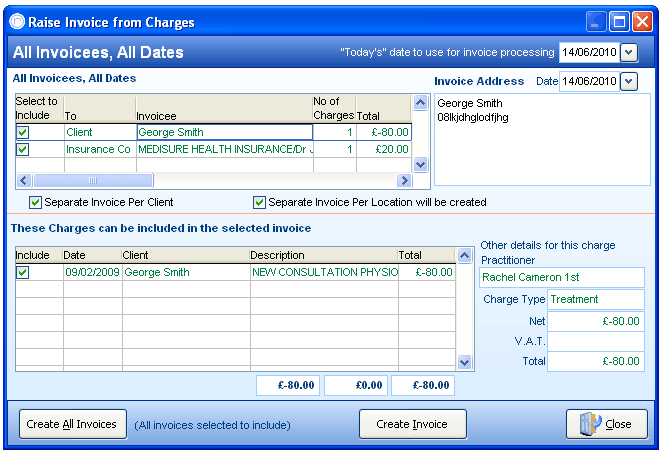
All Invoicees, All Dates
The 'Raise Invoice' screen allows multiple invoices to be raised at once. Highlighting individual invoices (that are not yet raised) will show the individual charges associated with that invoice in the lower section.
Date Ranges
Each invoice will have their own date just to the right of "Invoice Address". Make sure that the date used for invoice processing is the one you need (located in the top right corner) – If you wish to raise all invoices with the same date, ensure “Data invoice is created” has been selected in 'Invoice Options' first and then choose the appropriate date in the date box next to the text ‘“Today’s” date to use for invoice processing’.
Invoice Address
Selecting individual invoices will show the invoicee address. This can be edited if any changes are required.
Seperating Invoices and Locations
The invoice screen groups invoices with the same third parties and also seperates invoices based on locations, if locations are actively used within PPS. This can be changed if required via the tick boxes.
Charges Included
If an invoice has been highlighted, the charges associated to that invoice are shown here. You can optionally choose which charges are raised for that invoice and which ones are ignored. Extra details about each charge is shown on the lower right hand side of the screen.
Creating Invoices
Clicking on 'Create All Invoices' raises every invoice that has been ticked. Otherwise, each invoice can be raised individually.
Further Help & Information
If you need any further assistance, please call PPS support on 0845 0680 777 and go through to option 2. Alternatively, you can e-mail us at support@rushcliff.com
If you do not have a support contract and require further information, please contact PPS Sales on 0845 0680 777 and go through to option 1.
Become part of the PPS community and visit the PPS user forum - For PPS users, by PPS users!
The PPS Support Forum
Do you have a support contract with us? If so, check out our on-line help guides - easy step-by-step help and a range of answers to common questions.
Login to your account at https://www.rushcliff.com/support.php and take a look!
DISCLAIMER: This help documentation is offered on a “best intentions” basis. No responsibility is held by Rushcliff Ltd or it’s agents for the content, or for the advice given herein, or for the consequences or actions resulting in following the advice given in this help guide. This document may contain confidential information. The unauthorised use, disclosure or copying of this document or any of the information contained within it is strictly prohibited. Rushcliff Ltd PO Box 6406 Burton On Trent DE15 0XR. Registered in England and Wales, No. 4151443 VAT No. 488 9467 38. Registered office Basepoint Business & Innovation Centre, 110 Butterfield, Great Marlings, Luton, Bedfordshire, LU2 8DL.